
Getting started
The Control Room is where you can set up and manage your People Count and Occupancy Monitoring solutions. This guide is aimed at first time users. It will take you through the first steps of:
- Adding sites for each business location.
- Giving team members access.
- Setting up People Count or Occupancy monitors.
- Creating alerts and email notifications.
If you're looking for help connecting a sensor you have received, please see the Sensor setup guide. For any questions not answered in this guide, please look at the knowledge base. Or if you are still not able to resolve an issue contact our support team at support@hoxtonanalytics.com.
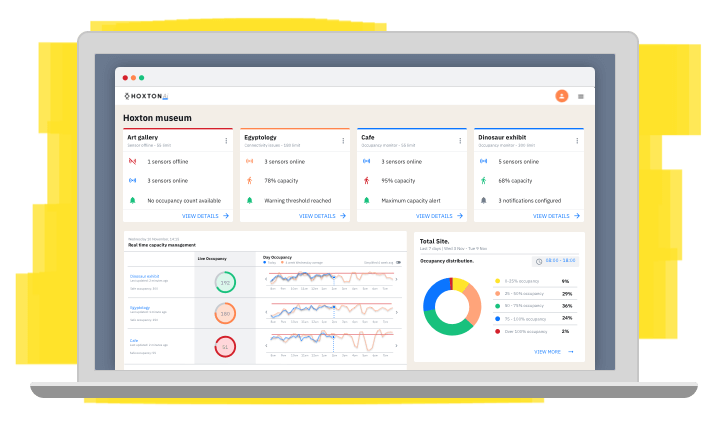
Set up your sites
A site is the whole building or address that you want to use HoxtonAi sensors in. You can add as many sites as you need for your organisation.
Setting up a site will be one of the first things you need to do when you get access to your Control Room and the process is very easy.
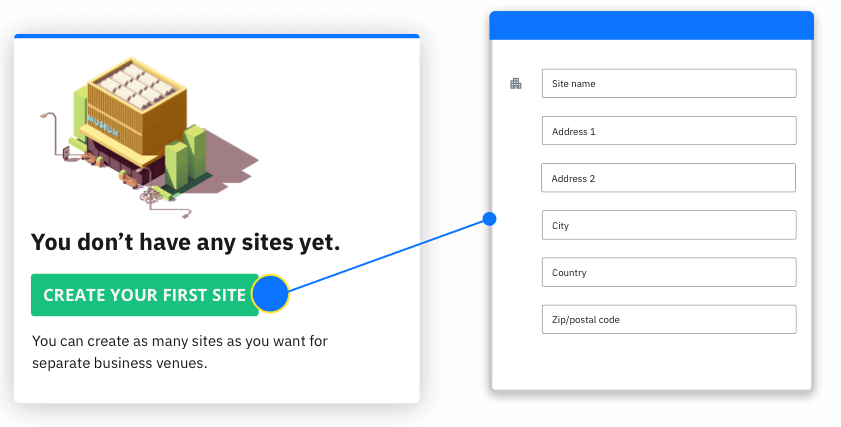
You're now ready to create a monitor. But first you might want to add some users to the Control Room.
Add users
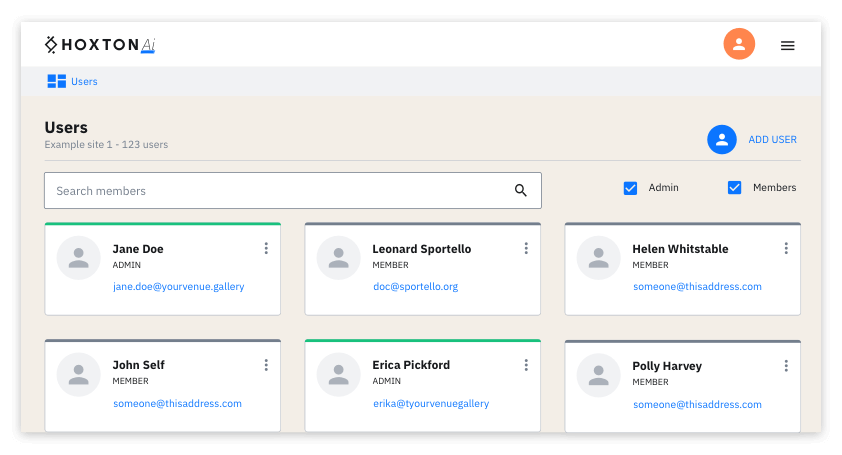
Create an account for anyone in your organisation who will need access to the Control Room. Users can be given access to all your sites or a restricted selection.
- Admin accounts have access to all sites in your organisation and all areas of the Control Room.
- Member accounts can be specific to just one site.
Monitors
Monitors are an integral part of setting up your people counting. You will need a connected sensor to complete a monitor setup — but you can start the process even if you haven't received your sensor(s) yet.
There are two types of monitor. Depending on your licence type, not all organisations will see occupancy monitors in their Control Room.
People Count monitor
Gather data points of date, time and directional flow for the people passing through your doorways. These monitors can be used in a multitude of ways to suit different business needs. Some common use cases are:
- Calculating the conversion rate of sales.
- Understanding traffic patterns on an hourly, daily, weekly or seasonal basis.
- Triggering particular events (such as bathroom cleaning) based on number of uses rather than just time slots.
Occupancy monitor
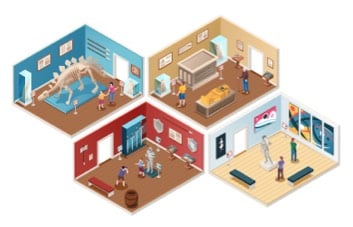
Take people counting data to the next level. Occupancy monitors tell you how many people are in your spaces at any time. Businesses are using this knowledge to:
- Allocate staff to the busiest areas of the site.
- Understand average occupancy of ticketed areas and improve ticket allocations.
- Post traffic levels to a website to help visitors plan their trips.
Set up a People Count monitor
1. Give your monitor a name
This should be descriptive of the space it is monitoring. For example: "Shop visitors" (if it's counting all traffic through the only door in/out of your shop), or "First floor POS" (if you were counting people passing a sales promotion spot on the first floor).
2. Add a position
Positions are where you are mounting sensors in your monitor. All data from the sensor is saved to the position it is located at. So if you move or replace a sensor — the data it collected is kept.
A position must be given two directions. The name of these should describe the direction a person is travelling in, e.g. "Into main building" & "Leaving building", or "Towards foyer" & "Towards gift shop".
3. Connect a sensor
After setting up your positions, you will be prompted to connect a sensor. Select from the list of your registered sensors. Find out more about connecting a sensor.
4. Confirm directions
You'll be shown a camera view from your sensor and asked to confirm the orientation of your given direction names (so we know which way around the camera is pointing).
5. Assign sensor alerts
Your sensor must be online to keep tracking visitor numbers and we recommend setting up alerts to notify team members whenever a sensor goes offline. If you have already set up some sensor alerts, you will be able to select them here. If you haven't set up any sensor alerts yet, find out more below.
Set up an Occupancy monitor
The steps for setting up an Occupancy monitor are very similar to those for a People Count monitor.
1. Give your monitor a name
This should be descriptive of the space it is monitoring. For example: "Shop visitors" (if it's counting occupancy of your entire shop), or "Gift shop" (if you are counting a specific space within your site).
2. Set the capacity and reset time
Set the maximum (or optimum) capacity you want in the space being monitored. You can configure notifications to be sent to team members based on space usage in relation to this figure.
The occupancy count for the monitor will reset to 0 every 24 hours. Set the time of day you would like this to be. This is typically at the end of your day or just before you open.
3. Add positions
Positions are where you are mounting sensors in your monitor. It's important you have a sensor on every entrance/exit into the space being monitored. Your occupancy counts will be inaccurate if people can enter/exit the space without a sensor recording it.
If your space has 3 doorways, you should create 3 positions and mount a sensor in each.
All data from the sensor is saved to the position it is located at. So if you move or replace a sensor — the data it collected is kept.
A position must be given two directions. The name of these should describe the direction a person is travelling in, e.g. "Into main building" / "Leaving building" or "Towards foyer" / "Towards gift shop".
4. Define the IN direction
In addition to labelling the directions for the positions in your monitor, you will need to specify which of these directions leads into the monitored space.
5. Connect a sensor
After setting up your positions, you will be prompted to connect a sensor. Select from the list of your registered sensors. Find out more about connecting a sensor.
6. Confirm directions
You'll be shown a camera view from your sensor and asked to confirm the orientation of your given direction names (so we know which way around the camera is pointing).
7. Assign sensor alerts
Your sensor must be online to keep tracking visitor numbers and we recommend setting up alerts to notify team members whenever a sensor goes offline. If you have already set up sensor alerts, you will be able to select them here. If you haven't, find out more below.
Sensor alerts
For all HoxtonAi solutions it's essential your sensors remain connected to the internet to be able to keep counting your traffic. We recommend you set up alerts to notify team members whenever sensors go offline or experience periods of poor connectivity. This ensures you can get them back online as quickly as possible and experience the minimum interruption to your traffic data.
Set up alerts for sensors that are offline or have poor connectivity.

Occupancy alerts
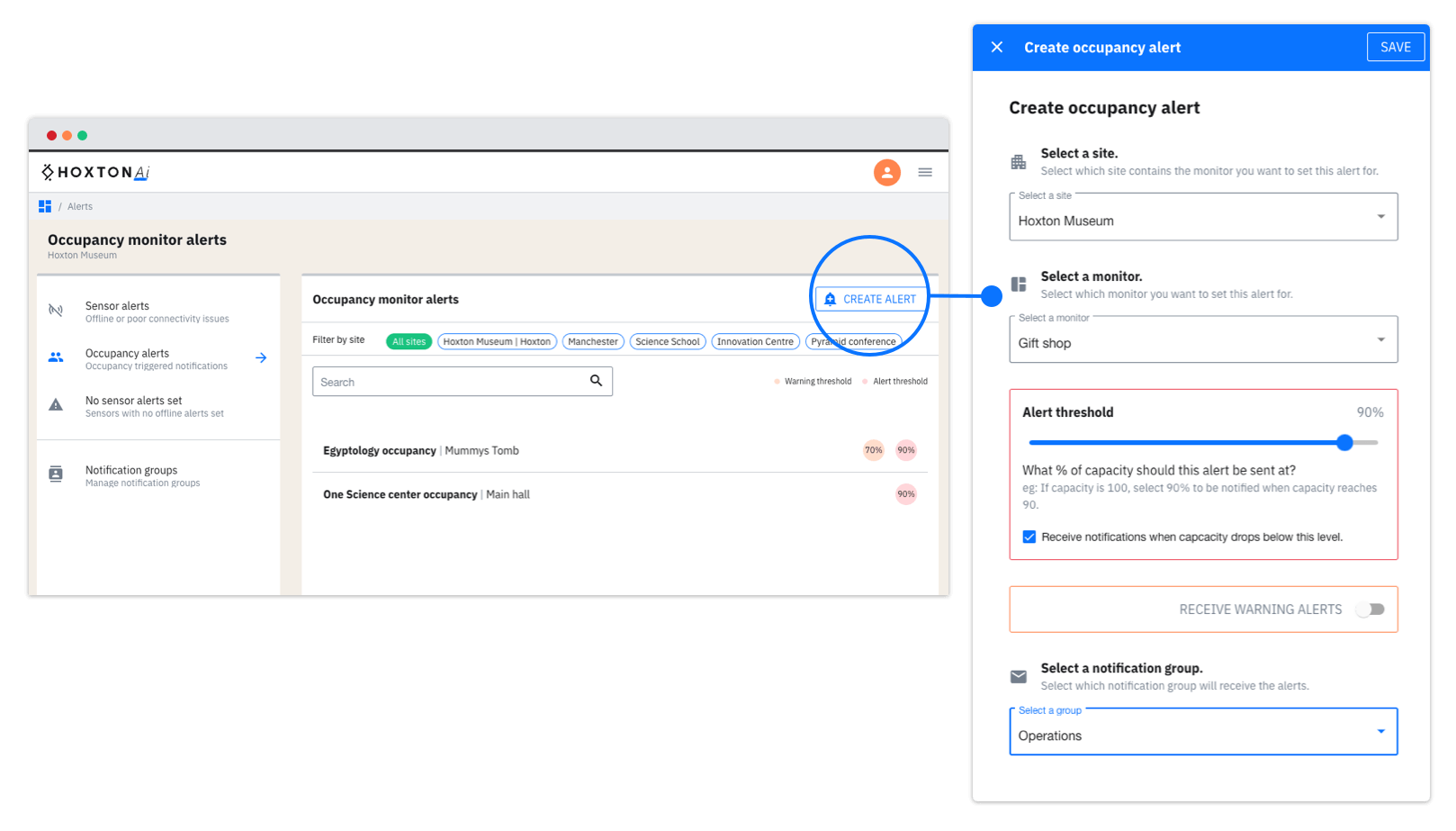
Occupancy alerts will notify you when certain occupancy thresholds are reached.
Give your alert a name, and choose the sites that this will apply to (if you have staff who work across multiple sites, you might find it easier to set up a single rule to cover all of them).
Your alert threshold is the level of capacity that can be reached before an alert is sent. If the capacity is 100 and you set the threshold to 90%, you will get notified when the occupancy reaches 90 people.
Some teams might also want to receive alerts when occupancy numbers hit a lower warning threshold. If you want to use this feature, activate it and then set the threshold level in the same way you did for the alert threshold. For example, setting it to 75% means you'll get an alert when occupancy reaches 75 people. If the occupancy number continues to rise, you would also receive an alert notification when occupancy reached 90.
Notification groups
Notification groups make it easier to ensure the right people in your organisation are being notified about sensor statuses and visitor traffic.
Ensure you are already familiar with the process of adding a new user.
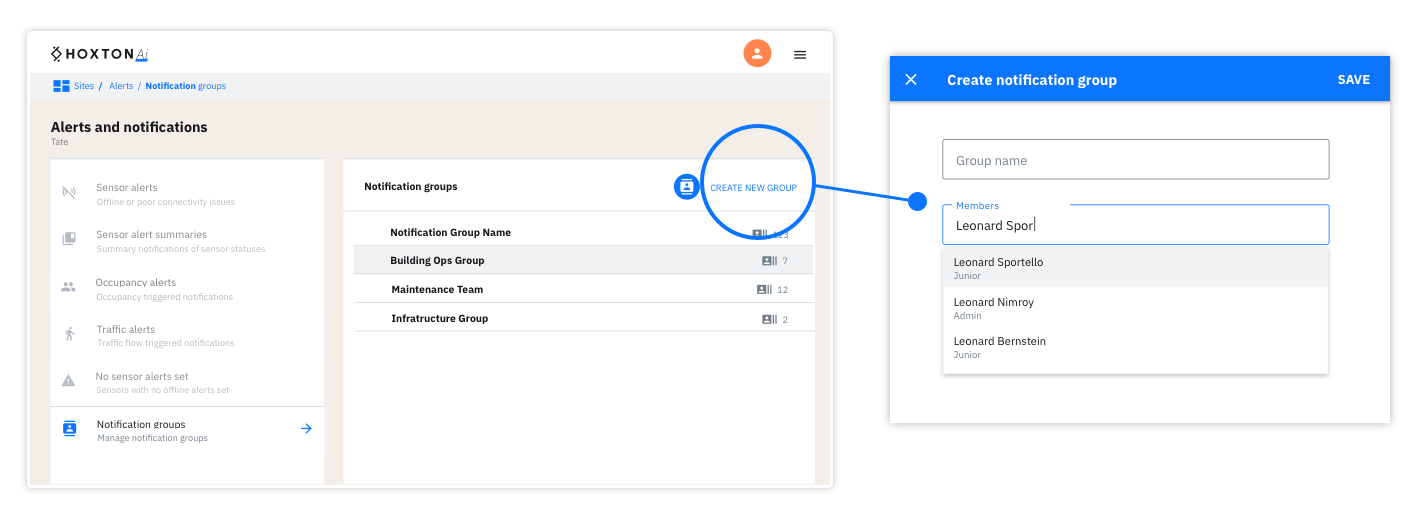
Notification groups can be managed within the Alerts area in the Control Room.
Creating a notification group is as easy as giving it a name and adding the email addresses of everyone you want to be part of the group. You will assign email alerts to be sent to your notification groups when you create new alerts. You can send multiple alerts to any notification group.
Next steps
You should now have a good overview of the Control Room and how to start monitoring traffic and usage of your spaces. For more in-depth articles about specific features, explore the other articles in the Knowledge Base.