Shopify POS Analytics: 5 Physical Store Metrics You're Missing
TL;DR — Key Takeaways
- Shopify POS is excellent for transaction data (what sold, revenue, staff performance) but blind to foot traffic and visitor behavior.
- 5 critical metrics are missing:
- Footfall (total people who entered)
- In-store conversion rate (% of visitors who bought)
- Capture rate (% of passers-by who entered the store)
- Dwell time patterns (when people visit vs. when they buy)
- Marketing-to-footfall attribution (which campaigns drove physical traffic)
- Why this matters: A sale doesn't magically appear. It starts with a visitor. Without knowing how many visitors you had, you can't optimize anything.
- The solution: Pair Shopify POS with a people counter (AI vision, thermal, or infrared sensor) and basic analytics to bridge the gap.
- Setup: 30 minutes hardware + Shopify integration = complete picture of your physical store.
Part 1: What Shopify POS Does Track (And Does Brilliantly)
Let's start with what Shopify POS actually reports. It's quite good at these:
Transactions & Revenue
- Daily/hourly sales
- Revenue by product, category, or employee
- Average order value
- Refunds and discounts applied
Staff Performance
- Sales per employee
- Transaction count per employee
- Commissions calculated automatically
Customer Insights
- Repeat customer count
- Customer lifetime value
- Purchase history by customer
Inventory
- Stock levels at each location
- Items sold by SKU
- Reorder suggestions
Payment Methods
- Cash vs. card vs. mobile payment breakdown
- Payment processing fees
This data is gold. Shopify POS handles it flawlessly and integrates with your online store for a unified view.
But here's the blind spot.
Part 2: The Five Metrics Shopify POS Doesn't Report
Metric 1: Footfall (Total Visitors)
What it is: The total number of people who physically entered your store.
Why Shopify POS doesn't measure it: Shopify only knows about transactions. If someone walks in, browses for 10 minutes, and walks out empty-handed, Shopify never saw them.
Why you need it: You can't calculate conversion rate (the most important retail KPI) without knowing your denominator. If you had 200 visitors and 20 transactions, that's 10% conversion. If you had 20 visitors and 20 transactions, that's 100% conversion. Vastly different stories.
How to measure it: Install a people counter (AI vision camera, thermal sensor, or infrared beam) at your store entrance. It counts everyone passing through.
Example:
- Monday: 150 visitors, 22 transactions → 14.7% conversion
- Tuesday: 180 visitors, 25 transactions → 13.9% conversion
Without footfall data, you'd only see the revenue went down and assume Tuesday was worse. With footfall data, you see Tuesday actually had more visitors but conversion dipped slightly. Different diagnosis, different action.
Metric 2: In-Store Conversion Rate
What it is: Percentage of store visitors who made a purchase.
Formula: (Transactions ÷ Footfall) × 100
Why Shopify POS doesn't measure it: Again, it doesn't know footfall.
Why you need it: It's the single most important metric in retail. Higher conversion rate = fewer marketing dollars needed to hit revenue targets. Lower conversion rate = identify bottlenecks (long checkout queues, confusing layout, unhelpful staff).
How to measure it: Pair footfall data (from people counter) with transaction data (from Shopify POS). Divide one by the other.
Benchmarks:
- Grocery stores: 40–60%
- Fashion stores: 15–25%
- Electronics: 10–20%
- Home & garden: 20–30%
- Pharmacy: 45–70%
Example:
You're a boutique clothing store. Shopify shows £3,000 revenue. A people counter shows 200 visitors. That means:
- Conversion rate: (transactions ÷ 200) = ? Let's say 30 transactions.
- (30 ÷ 200) × 100 = 15% conversion.
Is 15% good for fashion? Yes, that's at the low end of the 15–25% range. But it tells you exactly where you stand vs. competitors.
Metric 3: Capture Rate (Foot Traffic to Entry)
What it is: What percentage of people walking past your store actually enter it.
Formula: (Visitors to Store ÷ Estimated Passersby) × 100
Why Shopify POS doesn't measure it: It doesn't even know how many people walked past (let alone entered).
Why you need it: Capture rate tells you how effective your window display, signage, and curb appeal are at drawing people in. A 2% capture rate is terrible. A 10% capture rate is excellent.
How to measure it:
- A people counter outside your door tells you how many people passed by (optional; higher-end solutions have this).
- Divide store visitors by passers-by.
- Compare capture rates week-over-week and after you change the window display.
Example:
- Week 1: 500 passers-by, 75 entered (15% capture rate)
- You redesign the window display with better lighting and a seasonal sale sign.
- Week 2: 480 passers-by, 110 entered (22.9% capture rate)
That window redesign just increased walk-ins by 8 percentage points. That's a significant ROI.
Metric 4: Dwell Time Patterns
What it is: How long visitors spend in the store, and when they visit vs. when they convert.
Why Shopify POS doesn't measure it: It only knows when transactions occur, not when people browse.
Why you need it: Dwell time tells you:
- Are people spending enough time to find what they want?
- Do visitors cluster at one product or spread throughout the store?
- Is there a "dead zone" nobody walks through?
How to measure it:
- High-end people counters (AI vision systems) track dwell time heatmaps.
- You see a visual representation of where people linger and where they rush through.
- Connect it to conversion data: do high-dwell areas have higher conversion?
Example:
Your people counter's heatmap shows:
- Entrance to first shelf: 2 seconds average dwell time
- Fitting rooms area: 8 minutes average dwell time
- Checkout queue: 3 minutes average dwell time
This tells you people are moving quickly through your main floor but spending time trying things on. Maybe improve lighting or signage on the main floor to slow them down and improve discovery.
Metric 5: Marketing-to-Footfall Attribution
What it is: Which marketing campaigns (social media ads, email, radio, etc.) drove people to physically enter your store.
Why Shopify POS doesn't measure it: Shopify POS only knows what sold online or what staff rang up at the register. It doesn't know how the customer learned about the store.
Why you need it: You could be spending £500/month on Instagram ads that drive traffic to your website. But do they drive traffic to your physical store? Without this data, you're guessing.
How to measure it:
- Run a marketing campaign (e.g., "Open late Friday night—come in for a free gift").
- Note the date and details.
- Compare footfall data before, during, and after the campaign.
- Did footfall spike? If yes, the campaign worked.
Example:
- Week 1 (baseline): 120 daily visitors on average, Fridays: 180 visitors
- You run an email campaign on Wednesday: "Come in Friday for extended hours + 10% off"
- Week 2, Friday: 280 visitors (55% increase vs. baseline Friday)
That email campaign brought an extra 100 people into the store. At your 15% conversion rate, that's 15 extra transactions = £300 extra revenue. If the email campaign cost £50, that's a 6x ROI.
Without footfall data, you wouldn't know the email campaign did anything. Online sales data is useless here (the campaign drove physical visits, not online clicks).
Part 3: The Data Gap Visualized
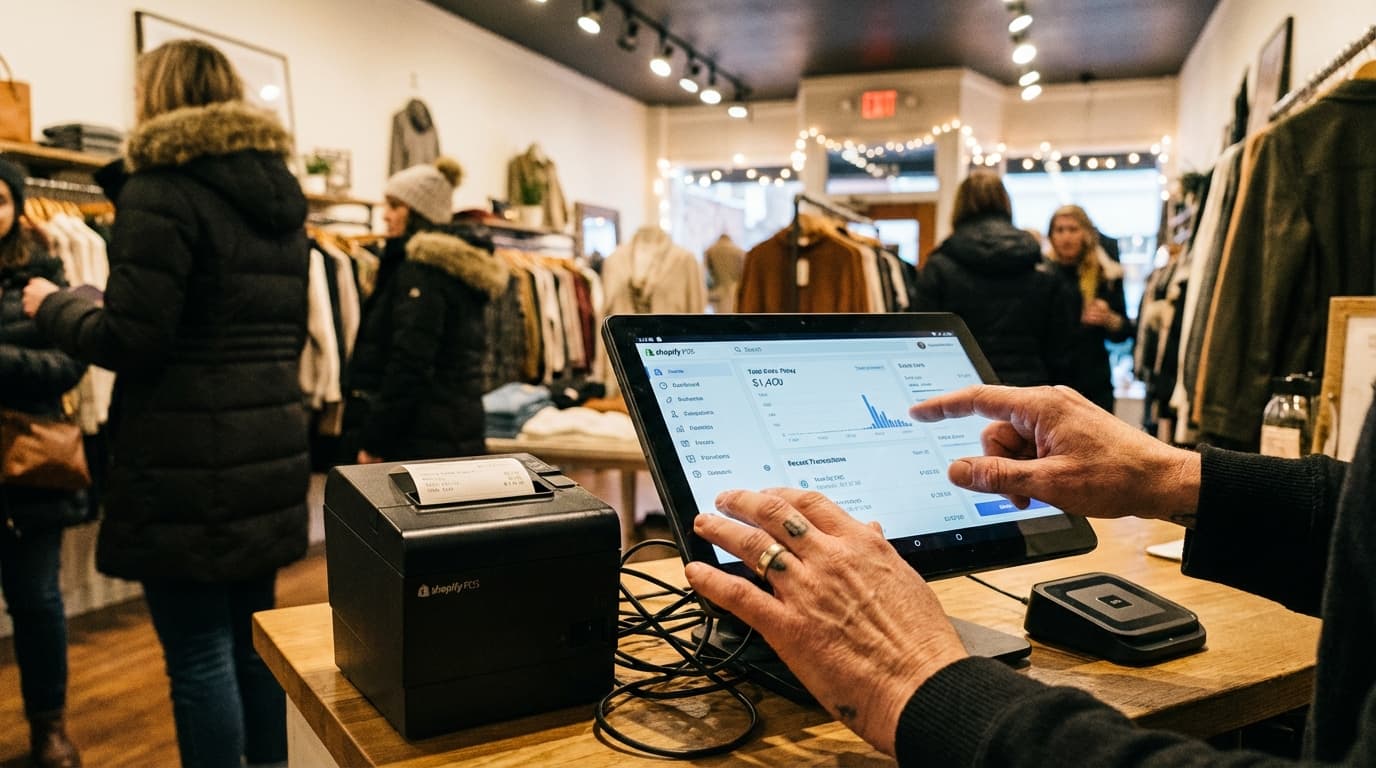
Here's what your Shopify POS dashboard currently shows:
┌─────────────────────────────────────────┐
│  SHOPIFY POS DASHBOARD (TODAY)          │
├─────────────────────────────────────────┤
│ Revenue: £1,450                         │
│ Transactions: 22                        │
│ Average Order Value: £65.91             │
│ Top Product: Blue Jeans (6 sold)        │
│ Top Staff: Sarah (£450 in sales)        │
│ Payment: 15 card, 7 cash                │
│                                         │
│ ❌ Footfall: NOT TRACKED                │
│ ❌ Conversion Rate: NOT TRACKED          │
│ ❌ Capture Rate: NOT TRACKED             │
│ ❌ Dwell Time: NOT TRACKED               │
│ ❌ Campaign Attribution: NOT TRACKED    │
└─────────────────────────────────────────┘
Now imagine a people counter adds data:
┌─────────────────────────────────────────┐
│  SHOPIFY POS + FOOTFALL DATA            │
├─────────────────────────────────────────┤
│ Revenue: £1,450                         │
│ Transactions: 22                        │
│ Average Order Value: £65.91             │
│ Top Product: Blue Jeans (6 sold)        │
│ Top Staff: Sarah (£450 in sales)        │
│ Payment: 15 card, 7 cash                │
│                                         │
│ ✓ Footfall: 145 visitors               │
│ ✓ Conversion Rate: 15.2%                │
│ ✓ Capture Rate: 18% (vs. passers-by)    │
│ ✓ Peak Hours: 12–2pm (45 visitors)      │
│ ✓ Campaign Impact: Email drove +22%     │
└─────────────────────────────────────────┘
Same day, same revenue. But the second version tells a complete story.
Part 4: How the Two Data Sources Work Together
Let's walk through a real retail week using combined data.
Monday
Shopify POS shows:
- £800 revenue, 12 transactions
People counter shows:
- 120 visitors, 10% conversion rate
Insight: You had fewer visitors (120) than usual. But those who came converted well (10% is solid). Action: Boost foot traffic through marketing next Monday. Staff quality is fine.
Tuesday
Shopify POS shows:
- £950 revenue, 14 transactions
People counter shows:
- 95 visitors, 14.7% conversion rate
Insight: Fewer visitors than Monday (95 vs. 120), but better conversion rate (14.7% vs. 10%). This is the insight Shopify alone misses! Action: Those 95 people were higher-quality leads. Where did they come from? (Check your marketing campaigns from Monday evening—maybe an email landed better than expected.) Replicate that messaging.
Wednesday
Shopify POS shows:
- £600 revenue, 8 transactions
People counter shows:
- 180 visitors, 4.4% conversion rate
Insight: High foot traffic (180 visitors) but terrible conversion (4.4%). Something's wrong. Shopify alone would show a bad revenue day and nothing more. With footfall data, you diagnose: either the store is out of stock on key items, staff are underperforming, or there's a checkout bottleneck. Action: Walk the floor Wednesday evening. Restock. Train staff. Add a second register Thursday.
Friday (Campaign Day)
Shopify POS shows:
- £2,200 revenue, 33 transactions
People counter shows:
- 240 visitors, 13.8% conversion rate
Insight: You ran a promotion Friday (a store sign about "Friday Night Extended Hours—10% Off"). Shopify shows strong revenue (best day of the week). Footfall data reveals: foot traffic spiked 55% (from ~155 baseline to 240), but conversion actually dropped slightly (from 15% to 13.8%). Action: The promotion brought more people, which is great. But the crowd may have overwhelmed staff or created checkout delays, reducing conversion. Next time, staff up + add a register to avoid the queue bottleneck.
Week Summary
| Day | Visitors | Transactions | Conversion | Revenue |
|---|---|---|---|---|
| Mon | 120 | 12 | 10.0% | £800 |
| Tue | 95 | 14 | 14.7% | £950 |
| Wed | 180 | 8 | 4.4% | £600 |
| Thu | 110 | 17 | 15.5% | £1,100 |
| Fri | 240 | 33 | 13.8% | £2,200 |
| Sat | 310 | 52 | 16.8% | £3,380 |
| Total | 1,055 | 136 | 12.9% | £9,030 |
With footfall data, you see:
- Conversion is weakest Wednesday (4.4%)—diagnose and fix immediately.
- Friday's promotion worked, but it's conversion rate fell; fix staffing/queues next time.
- Saturday is your strongest day by every metric—plan inventory and staffing around this.
- Your baseline conversion is ~14%, so anything below 10% signals a problem.
Without footfall data, you'd see "revenue was best on Friday and Saturday" and think "let's repeat the Friday promotion." You'd miss the fact that conversion was actually declining on those days and got lucky with volume.
Part 5: How to Set Up Combined Shopify POS + Footfall Analytics
Step 1: Choose a People Counter
See Best People Counters for Shopify Stores for a detailed comparison. For Shopify, we recommend:
- Easiest setup: Hoxton Convert (native Shopify app, 20 minutes)
- Best value: Dor (thermal, Shopify app, affordable)
- Most flexible: Storetraffic (API integration, custom reporting)
Step 2: Install Hardware
Most people counters mount above or beside your entrance. Installation is 10–30 minutes and requires no technical skills.
Step 3: Connect to Shopify POS
If your people counter has a native Shopify app:
- Open Shopify App Store.
- Search for the counter (e.g., "Hoxton Convert").
- Click "Add app" and authorize.
- The counter starts sending data to Shopify POS automatically.
If it uses API integration:
- Get API keys from the people counter's dashboard.
- Add them to Shopify settings or contact the vendor's support team.
- Test by walking past the counter and seeing data in Shopify within 30 seconds.
Step 4: Set Up Reporting
Most people counters include a dashboard. Set it up to show:
- Daily/hourly visitor count
- Conversion rate (automatic calculation)
- Trends vs. last week, last month
- Alerts (e.g., "Footfall dropped 20% today—is there a problem?")
Step 5: Act on the Data
This is the critical step most retailers skip. Each week:
- Review your conversion rate vs. baseline (or target).
- If conversion dipped: walk the floor, check inventory, review staff schedules.
- If foot traffic dipped: review marketing campaigns from the previous week. Did any campaign underperform?
- If conversion spiked: identify what caused it (staff, layout change, promotion, luck?) and replicate it.
Part 6: Recommended Minimum Tech Stack
You don't need enterprise software. Here's the minimal setup:
Option A: Native Shopify App (Easiest)
- Shopify POS: You already have this (£29–299/month)
- People Counter with Shopify App: Hoxton Convert or Dor (£60–150/month)
- Time to ROI: <1 week. Conversion rate calculated automatically.
Total cost: ~£90–450/month
Benefit: Everything in one place (Shopify dashboard). No manual work. Real-time alerts.
Option B: API Integration + Google Sheets
- Shopify POS: You already have this
- People Counter with API: Storetraffic or generic API-enabled counter (£50–120/month)
- Google Sheets: Free. Manually paste visitor numbers daily or use Zapier to automate (£20/month optional).
- Formula:
=Transactions÷Visitors×100to auto-calculate conversion rate.
Total cost: ~£70–140/month (plus £20 if you automate)
Benefit: Flexible. Works with any counter. Can export data to other tools.
Option C: Manual (Cheapest, Not Recommended)
- Shopify POS: You already have this
- Budget People Counter: Off-brand infrared sensor (£100–300 one-time, £20–40/month)
- Excel Spreadsheet: Free. Manually log visitor counts and calculate conversion.
Total cost: ~£20–40/month + 10 minutes manual work per day
Benefit: Cheapest upfront.
Drawback: You'll stop doing it after 2 weeks. Manual data entry kills adoption. Not recommended unless you're just testing the concept.
Part 7: Key Metrics to Track Weekly
Once you have footfall data flowing into Shopify, track these five metrics every week:
1. Conversion Rate (%)
- Target: Industry benchmark for your category (see Part 1 of our first blog post for benchmarks)
- Action: If below target, audit checkout queue, staff training, product availability
- Formula: (Transactions ÷ Visitors) × 100
2. Visitors Trend
- Target: Week-over-week growth of 5–10%
- Action: If declining, review marketing campaigns. Did spend drop? Did ad performance decline?
- Compare: This week to last week, this month to last month
3. Transaction Count Trend
- Target: Week-over-week growth aligned with foot traffic growth
- Action: If transactions decline faster than visitors, conversion is dropping. Diagnose.
4. Revenue per Visitor
- Target: Stable week-over-week
- Formula: Total revenue ÷ Total visitors
- Action: If declining, either conversion fell or average order value fell. Which is it?
5. Marketing Campaign ROI
- Track: Major campaigns (email, social, promotions) against footfall spikes
- Formula: (Extra visitors from campaign × Conversion rate × AOV) − Campaign cost
- Action: Double down on high-ROI campaigns, pause low-ROI ones
Part 8: Common Pitfalls (And How to Avoid Them)
Pitfall 1: "Our revenue is down, so something's wrong"
Reality: Maybe foot traffic is down (marketing problem), or conversion is down (operations problem). Without both data points, you're guessing.
Avoid it: Always look at footfall first. If visitors are steady but revenue is down, it's a conversion/AOV issue. If visitors are down, it's a traffic issue.
Pitfall 2: "We're converting well, so we don't need to optimize"
Reality: Even a 1% conversion rate improvement is huge ROI. If you convert 200 visitors at 15%, a 1% improvement (to 16%) adds 2 extra transactions per 200 visitors. At £50 AOV, that's £100 extra revenue per 200 visitors (50% margin = £50 extra profit).
Avoid it: Set a target conversion rate and track weekly. Aim for continuous improvement, not "good enough."
Pitfall 3: "We ran a promotion and revenue went up, so it worked"
Reality: Revenue went up because foot traffic went up. But if conversion declined (due to stockouts or queues), you left money on the table. A better-run promotion could have driven the same traffic and maintained conversion.
Avoid it: Always measure conversion rate alongside revenue. Promotions should drive traffic and maintain or improve conversion.
Pitfall 4: "People counters are inaccurate, so why bother?"
Reality: No data is worse than imperfect data. Even a 90% accurate counter beats no counter. And AI vision counters are 98% accurate—basically perfect.
Avoid it: Accept that 2–5% measurement error is fine. The trends and insights are still valid. A 10% conversion rate vs. a 15% conversion rate tells you everything you need to know.
Part 9: Next Steps
- Audit your current setup: Do you have Shopify POS? Do you have a people counter?
- Choose your people counter: Use our comparison guide to pick one.
- Install in 30 minutes: Hardware + Shopify integration is quick.
- Set a baseline: Track footfall and conversion for one week to understand your baseline.
- Pick one optimization: Choose one of the five metrics above and commit to improving it by 10% in the next month.
- Measure the impact: Compare week-over-week and month-over-month data to prove ROI.
Related Reading
- How to Track In-Store Conversion Rate with Shopify POS (2026 Guide)
- Best People Counters for Shopify Stores — 2026 Comparison
- Hoxton Convert: Shopify People Counter
Ready to See the Full Picture?
Stop flying blind. Connect a people counter to your Shopify POS and start tracking the five metrics above. Hoxton Convert installs in 15 minutes — see your conversion rate directly in your Shopify POS interface.
Last updated: February 2026