
This guide is for installations using an IP camera with a HoxtonAi gateway device. Setting up an S1 sensor instead? Follow the S1 Sensor Setup Guide.
Before you start
Connect and test everything on a desk before mounting the camera above an entrance. This lets you confirm that the network is correctly configured while the hardware is easy to reach.
What’s in the box?
- 1 HoxtonAi gateway device
- 1 IP camera and 1 wall bracket
- 2 Ethernet cables
- 1 PoE power adapter (also called a PoE injector)
- 1 USB-C power adapter
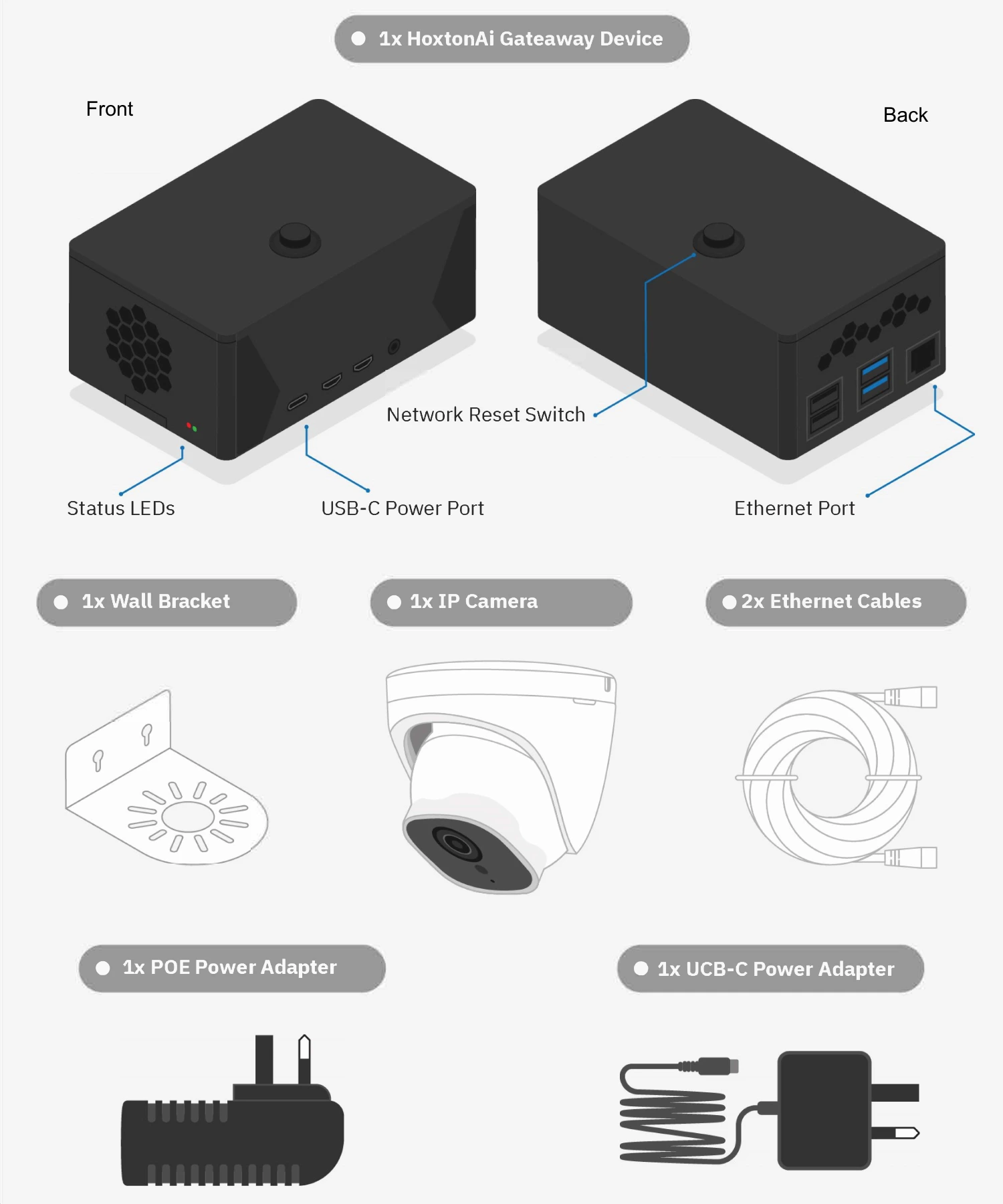
You’ll also need access to your network and your HoxtonAi welcome email. For Ethernet without an existing PoE switch, you’ll need one additional Ethernet cable (three in total).
1. Activate your account
- Open your HoxtonAi welcome email and follow the steps to create your account.
- Log in to HoxtonAi Nexus using your chosen password.
- Select Sites in the left sidebar, then Add site.
- Give the site a name, add its address and set its opening hours.
- Select Cameras in the left sidebar, then Add camera. Enter your camera’s serial number when prompted and give it a name you’ll recognise.
- Repeat the camera registration step for each camera you’re installing.
One site per physical address. You can link multiple cameras to the same site. Create separate sites only when installing at different physical addresses.
2. Connect your gateway and camera
Choose the instructions that match your network. PoE means Power over Ethernet: power and data travel through the Ethernet cable.
- Wi-Fi — connect the gateway to Wi-Fi and cable the camera through the supplied PoE injector.
- Ethernet without PoE — connect both devices to your router or switch, using the injector to power the camera.
- Existing PoE switch — connect the gateway and camera directly to your PoE switch.
Option A: Wi-Fi
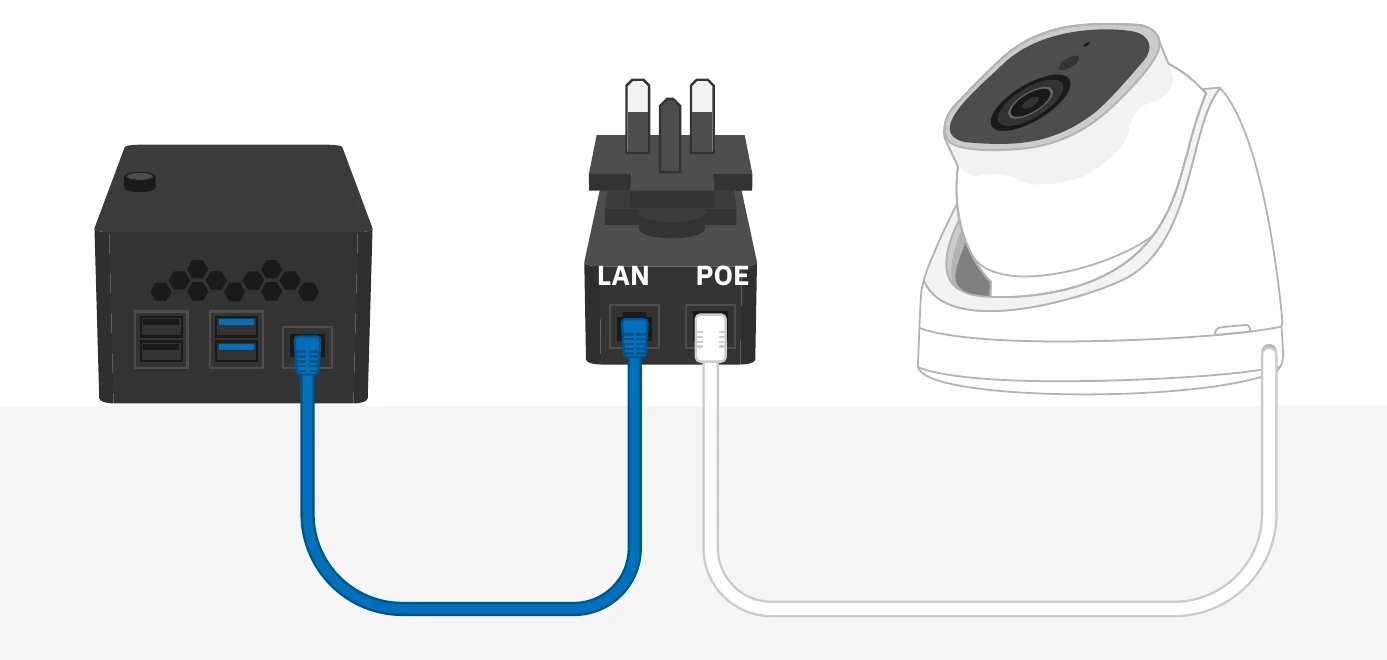
The gateway joins your Wi-Fi network. The camera connects to the gateway by Ethernet through the PoE injector.
- Connect the USB-C power adapter to the gateway and plug it into the mains. Wait up to 60 seconds for both status LEDs to flash in sync.
- On a laptop, phone or tablet, open the available Wi-Fi networks and connect to Hoxton Direct Hotspot.
- Wait for the configuration window to appear. Select your Wi-Fi network from the drop-down menu.
- Enter your Wi-Fi password and select Connect. Your laptop, phone or tablet will disconnect from the hotspot and reconnect to its previous Wi-Fi network.
- Wait up to one minute. A successful Wi-Fi connection is indicated by solid red and green LEDs.
- Connect an Ethernet cable from the gateway’s Ethernet port to the port labelled LAN on the PoE injector.
- Connect the second Ethernet cable from the injector’s POE port to the Ethernet port on the camera’s cable.
- Plug the PoE injector into the mains.
- Open Cameras in Nexus and check that a live view is available.
Option B: Ethernet without existing PoE
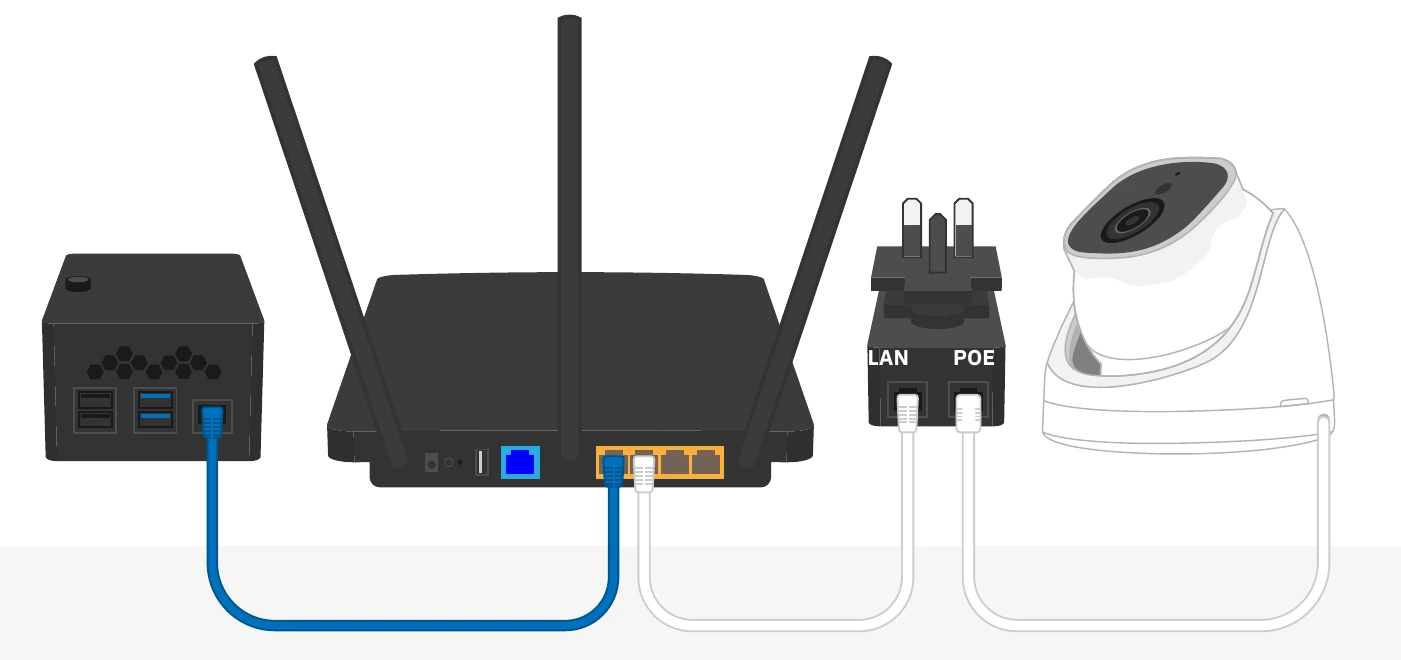
Use this option with a standard router or network switch. You’ll need three Ethernet cables; two are supplied.
- Connect the USB-C power adapter to the gateway and plug it into the mains. Wait up to 60 seconds for both status LEDs to flash in sync.
- Connect an Ethernet cable from the gateway’s Ethernet port to your router or network switch.
- Connect a second Ethernet cable from the IP camera to the POE port on the injector.
- Connect the third Ethernet cable from the injector’s LAN port to the same router or network switch.
- Plug the PoE injector into the mains.
- Open Cameras in Nexus and check that a live view is available.
Option C: Existing PoE switch
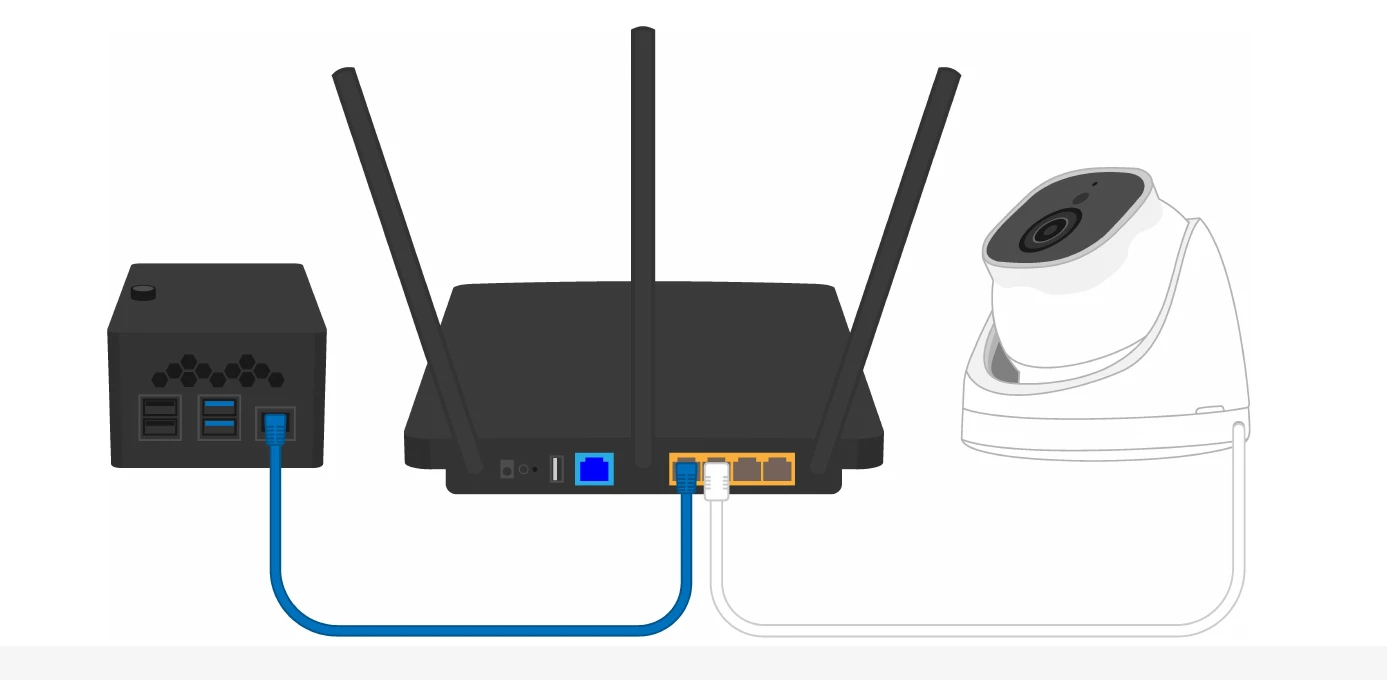
If you already have a PoE network switch, connect both devices directly to it.
- Connect an Ethernet cable from the gateway’s Ethernet port to a PoE port on your network switch.
- Connect a second Ethernet cable from the IP camera to another PoE port on the same switch.
- Check that both gateway status LEDs are lit without flashing.
- Open Cameras in Nexus and check that a live view is available.
3. Check the live view and mount your camera
Before mounting, open Cameras in Nexus and confirm that you can see a live view from the camera.
Your camera is ready to mount above the entrance. Follow the camera manufacturer’s installation guide for fixing it to the ceiling or a bracket.
If a live view isn’t available, keep the hardware accessible and check the power and cable connections for your chosen setup. If you still need help, contact support@hoxton.ai before mounting.